Quick start: Google reviews on your website in about five minutes
The whole path from sign-up to a live review widget, for beginners: create your account, connect your business, pick a design, copy one line and paste it into your website. With pictures of every screen.
New to ReviewPine? This guide takes you from nothing to your Google reviews showing on your own website. You don't need any technical knowledge: if you can copy and paste, you can do this. It takes about five minutes.
How it works, in one sentence: ReviewPine reads the reviews customers left on your Google listing and shows them in a box on your website (a widget), which updates itself whenever new reviews arrive.
Before you start, have these ready:
- Your business name as it appears on Google.
- An email inbox you can open now (for a sign-in code).
- A way to edit your website (your website builder's login), or the email address of the person who looks after it.
Good to know: Your free trial gives you 7 days with every layout and the full customiser, with no card needed. After it, one widget stays free forever.
Step 1 of 6: Create your free account#
You do this once. There is no password to make up and no card to enter.
-
Open the ReviewPine website. Go to https://reviewpine.com and click Create free widget in the top right corner.

Click the button in the top right corner of the home page. -
Type your name and your email address. Use an email inbox you can open right now, because we send a code to it in the next step. Then click Continue.
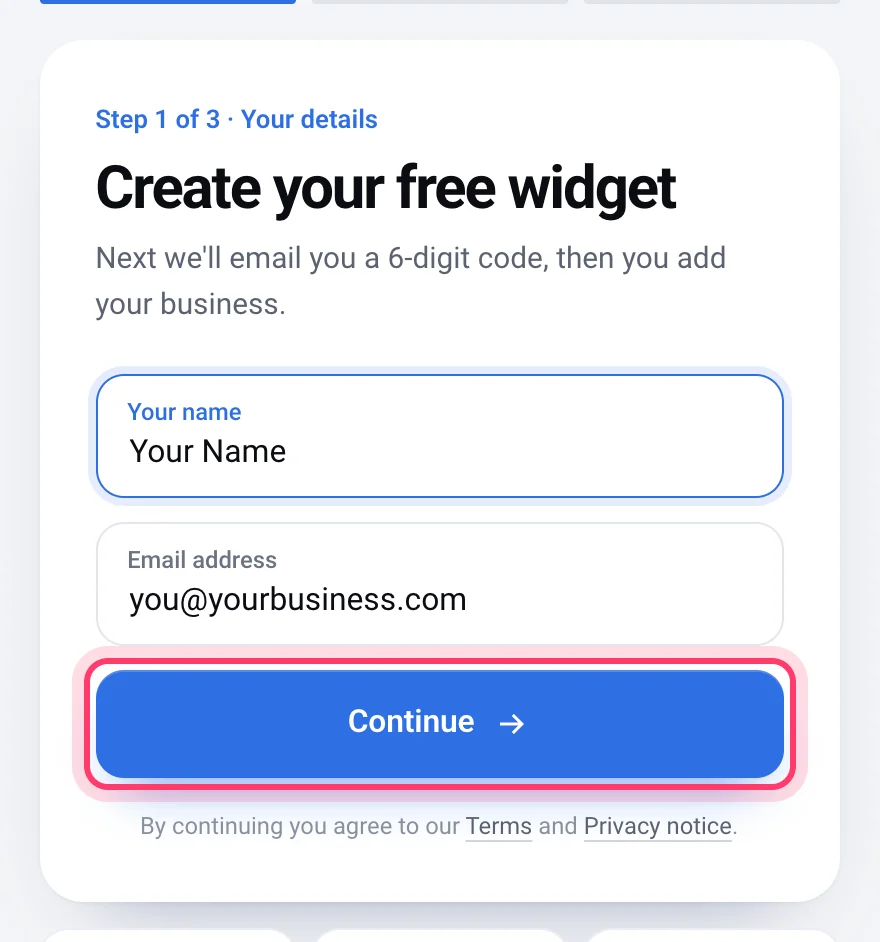
Your name and your email, then Continue. -
Open your email and find the 6-digit code. It comes from ReviewPine within a few seconds. Can't see it? Look in your Spam or Promotions folder too.
-
Type the code into the box and click Verify and continue. You can also paste it. The code works for 10 minutes and only in the browser where you asked for it.
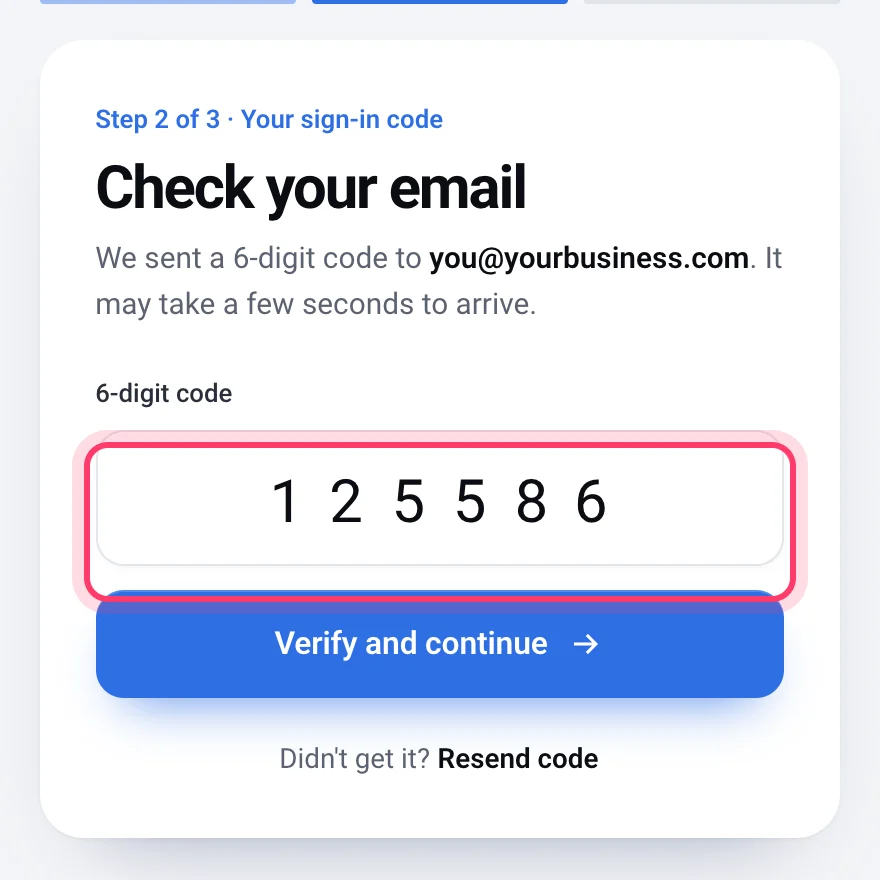
Type the 6 numbers from the email. Many phones and mail apps offer to fill it in for you. -
You are in. You land on your dashboard. It is empty for now: it fills up once your business is connected. Click Add your business to carry on.
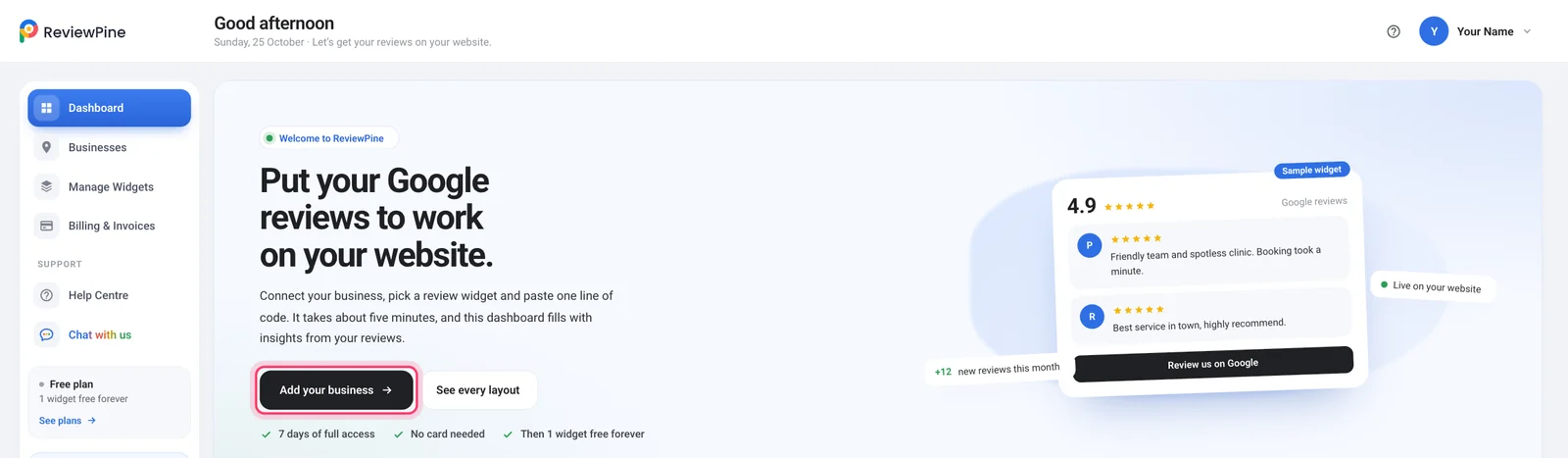
A new account. Add your business is the next step.
Good to know: Next time you want to sign in, go to https://app.reviewpine.com/login and enter your email. We send a fresh code each time, so there is never a password to forget.
Step 2 of 6: Connect your business on Google#
This tells ReviewPine which reviews to show: the ones on your business's Google listing (the box that appears when someone searches your business on Google or Google Maps). We only read your public reviews. We never post anything, and we never ask for your Google password.
-
Type your business name. In the big box, type your business name the way it shows on Google. Add your area or city if the name is common, for example "Sharma Dental Clinic Indiranagar". Wait a second: a list of matching businesses from Google opens under the box.
-
Click your business in the list. Check the name and the area under it. If you have more than one branch, pick the one whose reviews you want to show.
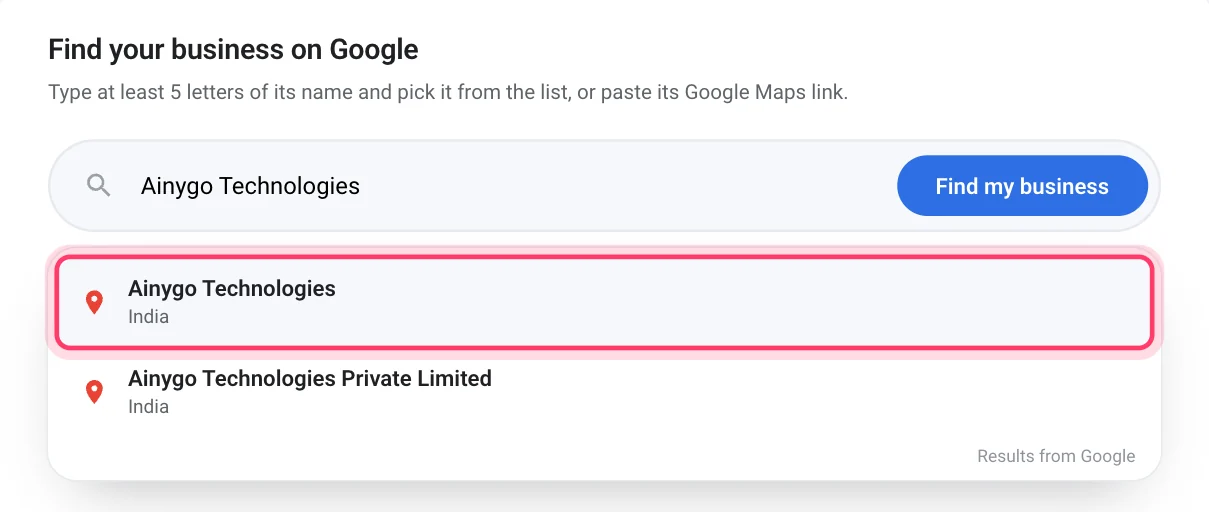
Type the name, then click your business in the list. -
Click This is my business. ReviewPine shows the business you picked. If it is the right one, click the button. Picked the wrong one? Just type again and pick another.
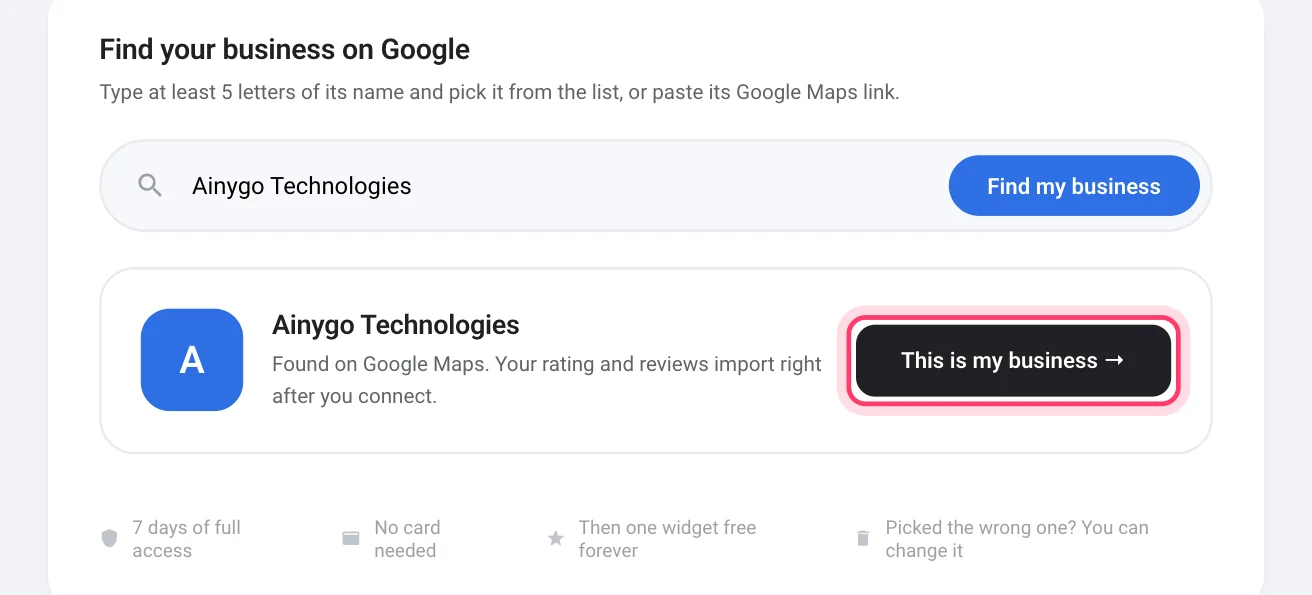
Check the name, then click This is my business. -
Wait a moment while your reviews arrive. You see "Connecting" with three ticks filling in. Your newest reviews usually arrive within a minute, and the rest keep importing in the background. You don't need to do anything: the next screen opens by itself.
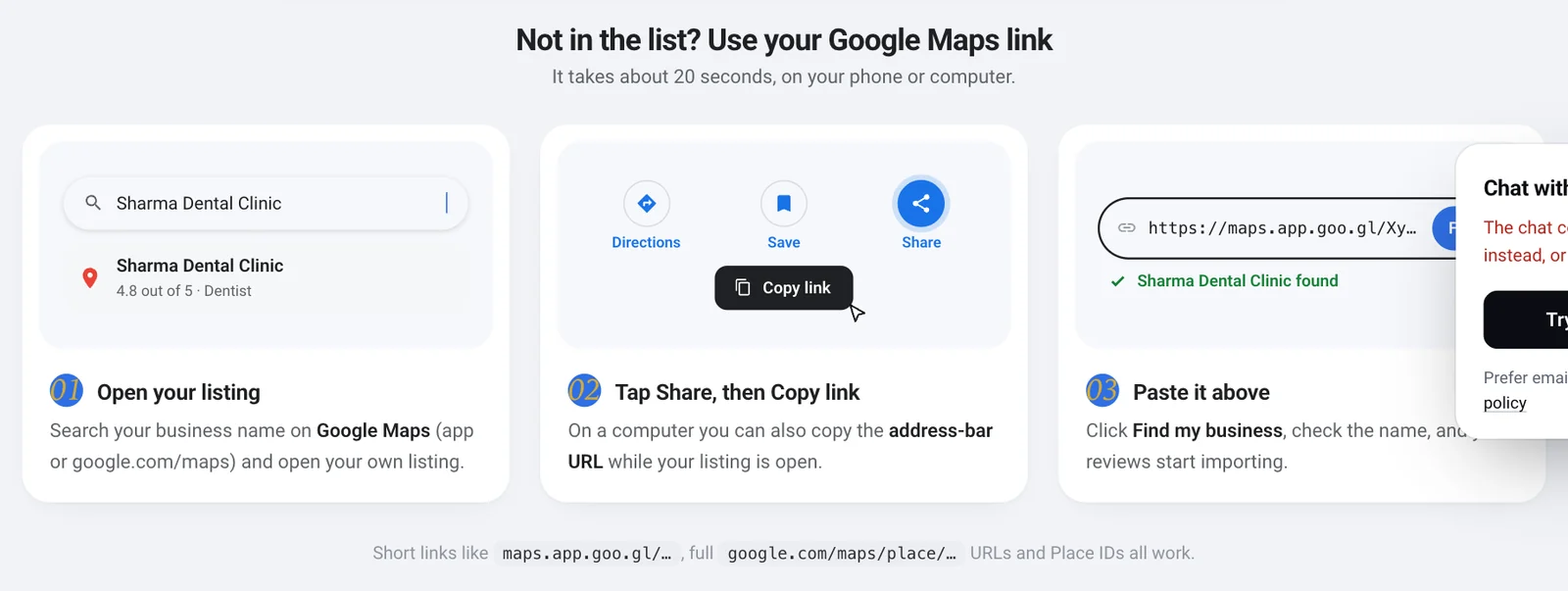
Tip: Your business is not in the list? Use its Google Maps link instead. Open Google Maps, search for your business and open it, click Share, then Copy link. Paste that link into the same box and click Find my business. The page shows these three steps with pictures too.
Note: Your business needs a Google listing with at least one review. A business that visits its customers (a plumber, a tutor) and hides its address works too.
Step 3 of 6: Choose how your reviews look#
A widget is the box of reviews your visitors will see. You pick its shape (the layout), then its colours (the look), then you can fine-tune it. Every preview already shows your own reviews, so what you see is what your visitors get. Don't worry about choosing perfectly: you can change all of it later, and your website follows by itself.
-
Pick a layout. Scroll through the layouts and click Choose under the one you like. Not sure? A slider such as Spotlight or Slider suits most home pages. A Floating badge sits in a corner of every page instead of inside one page.
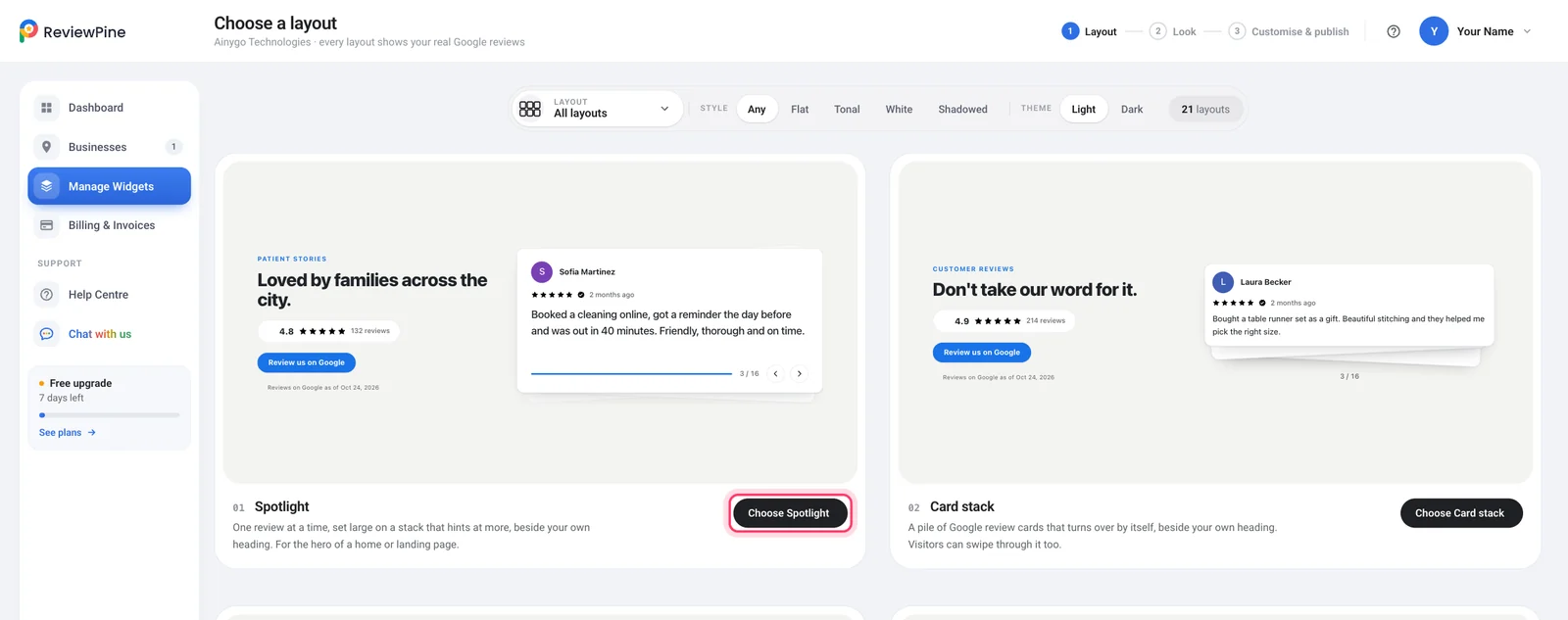
Each card is a different layout. Click Choose under the one you like. -
Pick a look. On the right are ready-made colour styles, under Light and Dark. Click a few to see them on the left, then click Continue in the bar at the bottom (for example Continue with Classic).
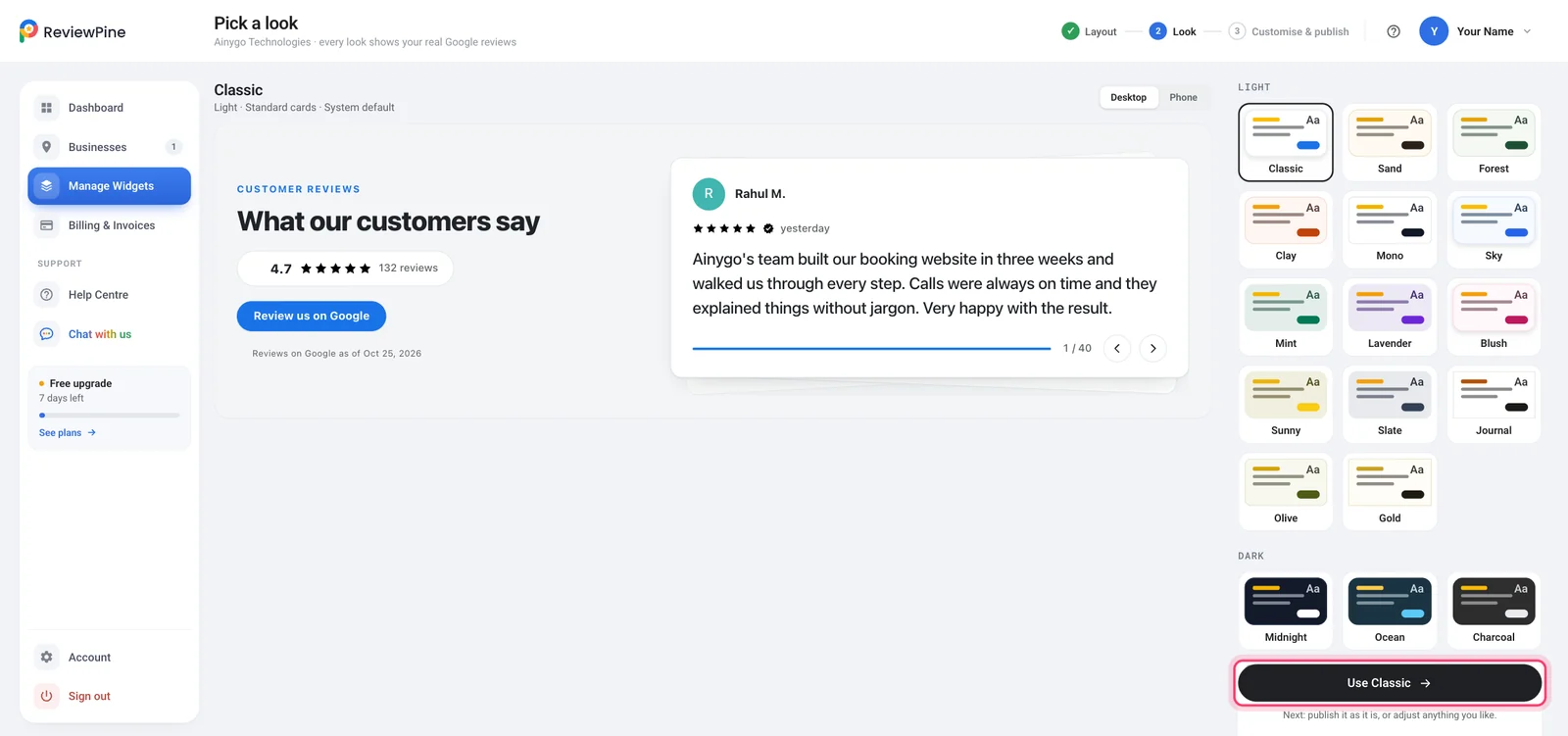
Click a look to preview it, then click Continue. -
Adjust it if you want, then click Save & publish. The customiser opens. On the left are the settings: colours, font, the heading, which reviews show and more. The preview in the middle changes as you go. Happy with it as it is? That's fine too. Click Save & publish in the top right corner.
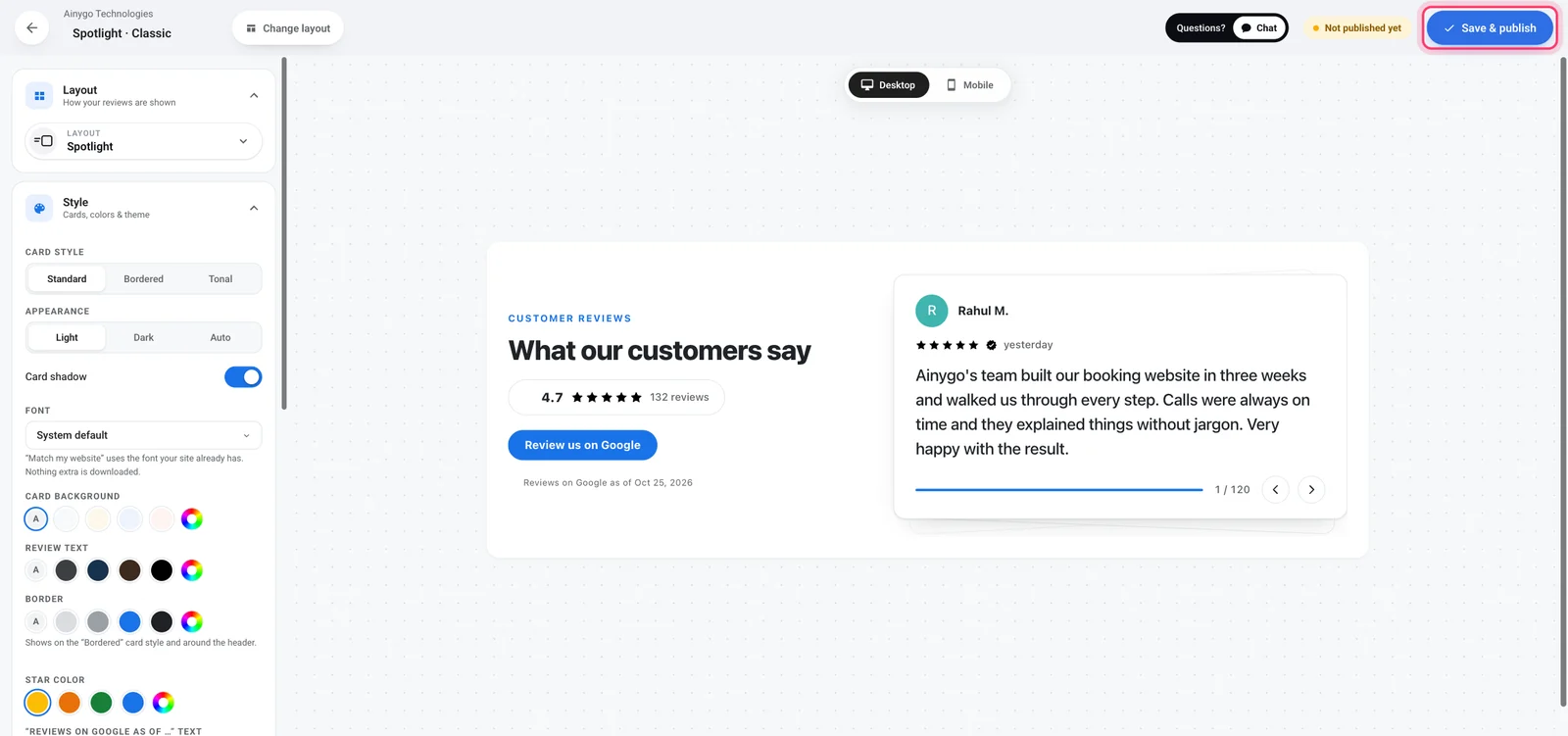
The customiser. When you are happy, click Save & publish.
Good to know: Desktop and Mobile at the top of the preview show how the widget looks on a computer and on a phone.
Step 4 of 6: Copy your embed code#
The embed code is one line of text that tells your website "show my ReviewPine reviews here". You copy it from ReviewPine and paste it into your website once. You never need to understand what is inside it.
-
Find the Add to website window. It opens by itself after you click Save & publish.
-
Click your website builder under "Where is your website built?" The window then shows your code and the short version of the steps below, so you can keep it open next to your website.
-
Click Copy code (under "Copy your code"). The button changes to say it is copied. Your code is now on your computer's clipboard, the same place text goes when you copy anything. Don't copy anything else until you have pasted it, or the code gets replaced.
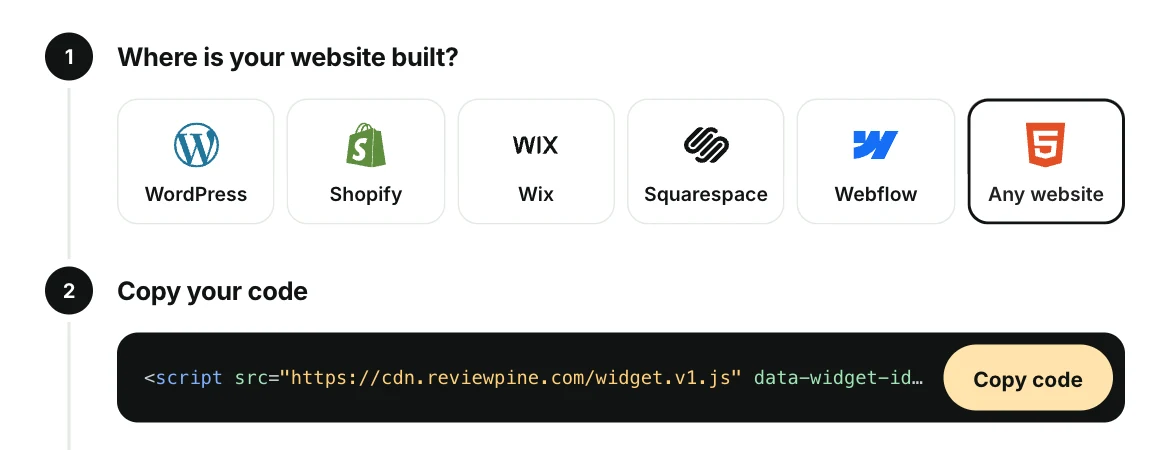
Copy code puts your code on the clipboard.
Tip: Closed the window by accident? Nothing is lost. Go to Manage Widgets in the menu on the left and click Add to website on your widget. It opens again with the same code.
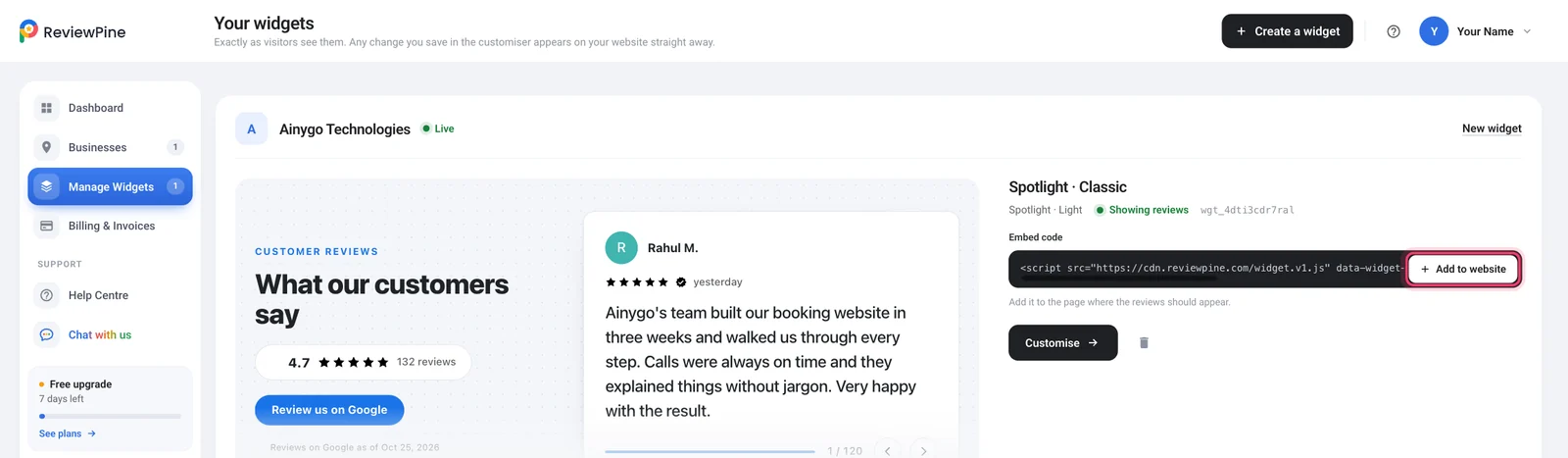
Step 5 of 6: Paste it into your website#
This part depends on how your website is made. Open the guide for yours: each one shows exactly where to click.
| Your website is made with | Follow this guide |
|---|---|
| WordPress | With our plugin (easiest) or by pasting the code |
| Shopify | With our Shopify app or by pasting the code |
| Wix | Wix guide |
| Squarespace | Squarespace guide |
| Webflow | Webflow guide |
| Anything else, or someone else edits it | Any website guide |
Don't know what your website is made with? Ask the person who built it, or look at the bottom of your website's admin or login page: the builder's name is usually there.
Step 6 of 6: Check it works#
- Open your website the way a visitor would. Use the real address of your site (not the editor), and open the page where you pasted the code.
- Refresh the page. Website builders and browsers keep old copies of pages for a while. If the reviews are not there, press refresh once more, or open the page in a private window.
- Look for your reviews. They appear where you pasted the code. A floating badge appears in a corner of the page instead.
That's it: your Google reviews are on your website. You never have to paste the code again. New reviews from Google appear by themselves, and any change you save in the customiser shows on your website straight away.
Good to know: ReviewPine sets no cookies on your website, so it needs no cookie banner, and it loads after the rest of your page, so your page shows first.
What next?#
- Get more Google reviews with your review link and QR code.
- Choose which reviews show, for example 4 and 5 star reviews only, or pin your favourites.
- Before your free trial ends, choose a plan so every widget and design keeps working.
If something goes wrong#
- Nothing shows at all. Check that the page is published (not only saved as a draft), and that you pasted the whole line, ending with
</script>. Copy it again with the Copy code button rather than selecting the text by hand. - I see the code as text on my page. It went into a normal text box. Delete it and paste it into the code or HTML element the steps above name.
- The reviews look cut off. The box you pasted into is too small. Make it taller, or choose a shorter layout in the customiser.
- The widget shows a notice instead of reviews. See the widget shows a notice.
- Still stuck? See widget not showing, or email [email protected] with the address of your page and we'll help you finish.
Still stuck?Tell us what you are trying to do. A real person reads every email.
Email supportNew to ReviewPine?Show your Google reviews on your website in five minutes. Free for 7 days, no card needed.
Start free trial